
 HD Cameras and Webcam
 Projectors and Speakers
 VOIP Phones and Gateway
 Access Control
 5G routers and 4G LTE Devices
 Smart Sensors And Automation
 Fiber and SFP Modules
 Firewall & Cloud Controllers
 Network Adapters and Accessories
 Network Switches
 PoE Switches
 Point To Point Wireless Radio
 Routers
 Wireless Access Points
 IP Cameras
 Memory Cards
 NVR
NVR Smart WiFi Cameras
 Storage Devices
 Desktop & Laptop RAMs
 Internal and External Hard Drives
 Storage Accessories and Enclosures
 SSD and NVMe Drives
 USB Flash Drives


Can a wifi router be used as an extender?

Yes, a wifi router can be used as an extender. Most TP-Link, Netgear, and Asus routers have a "repeater" or "access point" mode in their settings that lets them rebroadcast your main router's signal to cover dead zones.
How well it works depends on which mode you use.
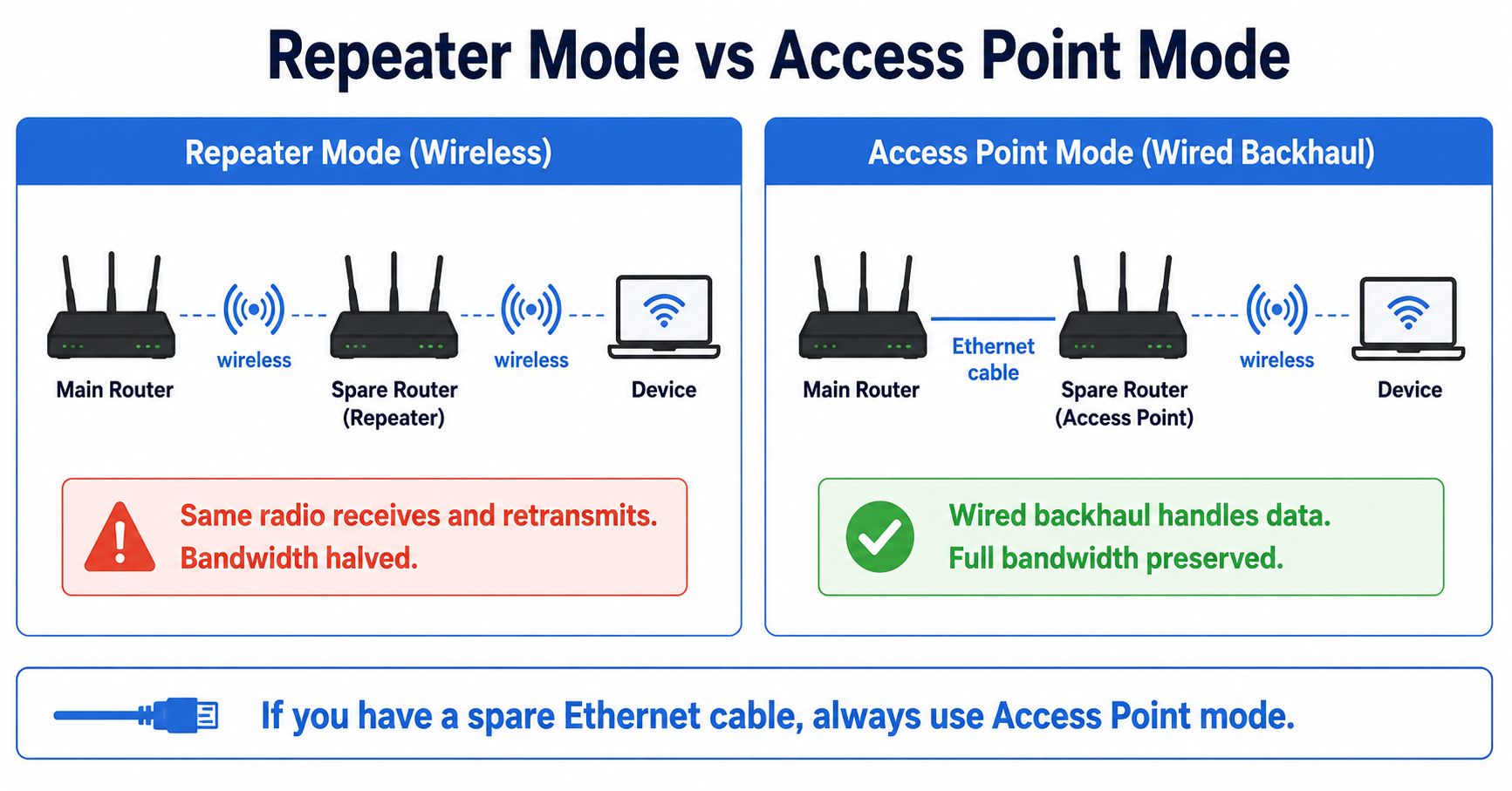
In repeater mode (wireless only), the router uses the same radio to receive and retransmit, which halves your bandwidth.
In access point mode (connected to your main router via Ethernet cable), there's no bandwidth penalty at all, and performance comes close to a dedicated mesh system.
If you've got a spare router and a cable to run, it's a genuinely effective free fix. If you're buying a new device specifically to extend coverage, get a mesh unit or access point instead.
Table of contents
Repeater mode vs access point mode: the difference that matters
There are two ways a router can work as an extender, and they produce very different results.
Repeater mode connects to your main router wirelessly and rebroadcasts the signal. The problem is that it uses the same radio to receive and retransmit, which means it's constantly switching between listening and talking. That halves your available bandwidth. If your main router delivers 300 Mbps, devices connected through the repeater will see roughly 150 Mbps at best. This is true regardless of how new or expensive the spare router is.
Access point (AP) or bridge mode avoids that problem entirely. You run an Ethernet cable from a LAN port on your main router to the spare router, switch it to AP mode, and it broadcasts wifi from that location without any bandwidth penalty. It's not splitting radio time because the wired cable handles the backhaul. This gets you results close to what a proper mesh system delivers, for free.
The terminology varies by brand. TP-Link calls it "Range Extender Mode." Asus calls it "Repeater Mode." Netgear sometimes uses "Wireless Repeating Function." Some routers offer both repeater and AP mode separately; some only offer one. Check your model's admin panel or spec page to see what's available.
Before you start: quick compatibility check
Not every spare router will work, and a few things can make the whole setup fail before you begin.
Wifi standard mismatch. If the spare router is Wifi 5 (802.11ac) and your main router is Wifi 6 (802.11ax), every device connected through the spare will be capped at Wifi 5 speeds. The older standard becomes the ceiling. This isn't a dealbreaker, just something to know before you expect full speeds from the extended network.
Encryption compatibility. This one can actually block the setup entirely. If the spare router only supports WEP or older WPA, it may not be able to match your main router's WPA2 or WPA3 encryption. The extender needs to support the same security standard as the network it's connecting to. A router old enough to lack WPA2 support is probably too old to be worth repurposing.
No native repeater or AP mode. Some routers, especially older or budget models, don't have a mode switch in their settings at all. In that case, flashing third-party firmware like DD-WRT or OpenWRT can unlock repeater or bridge functionality. It works, but it's a more technical process and not every router model is supported.
How to set it up?
The broad steps are the same across brands.
For AP mode (with Ethernet cable): Reset the spare router to factory defaults. Connect your computer to it via wifi or cable and log into its admin panel (usually 192.168.0.1 or 192.168.1.1). Disable DHCP on the spare router so it doesn't hand out IP addresses that conflict with your main router. Set it to Access Point or Bridge mode. Connect an Ethernet cable from a LAN port on your main router to a LAN port on the spare. Place the spare router where you need coverage.
For repeater mode (no cable): Reset the spare router. Log into the admin panel and switch the operating mode to Repeater or Range Extender. Select your main router's wifi network from the list and enter its password. Wait for the signal LED to confirm a successful connection. Move the spare router to roughly halfway between your main router and the weak signal area.
Important step to note: disable DHCP on the spare router. Two devices assigning IP addresses on the same network causes conflicts, dropped connections, and devices that intermittently can't reach the internet. Turn off DHCP on the repurposed router and let your main router stay in charge.
What you lose in extender mode?
Switching a router out of its default mode disables several features. TP-Link's own documentation confirms that Range Extender Mode turns off guest network, parental controls, port forwarding, IP and MAC binding, and access control. Other brands behave similarly, though the exact list varies.
This means if you're currently relying on the spare router's guest network for visitors or its parental controls for kids' devices, those stop working once it becomes an extender. Not a dealbreaker for most people, but worth knowing before you set it up and wonder why features have disappeared.
Should you use the spare router or buy something new?
This comes down to three questions.
Do you have an Ethernet cable you can run to the spare router? If yes, AP mode over Ethernet is a genuinely solid solution. No bandwidth penalty, no extra cost, performance close to a mesh system. Use the spare router.
Is wireless repeater mode your only option? It works, but with halved bandwidth and the limitations above. If the dead zone is mild (one room, light usage), repeater mode is a reasonable free fix. If you're trying to cover a large area or need consistent speeds for video calls and streaming, the halved bandwidth will be noticeable.
Are you buying a new device specifically for this? Then skip the router-as-extender approach entirely. A dedicated mesh system or a proper access point connected via Ethernet will outperform a router forced into repeater mode. Mesh nodes handle seamless roaming (your devices switch between nodes automatically without dropping), which a repurposed router in repeater mode cannot do.
The short version: if you already have a spare router and a cable, try AP mode first, it's free and effective. If you're shopping for a new device, get a mesh unit or access point instead.